> ## Documentation Index
> Fetch the complete documentation index at: https://processos.contagie.org/llms.txt
> Use this file to discover all available pages before exploring further.
# Como criar eventos recorrentes no Calendar
## Como criar eventos recorrentes no Google Calendar (Visitas Pedagógicas)
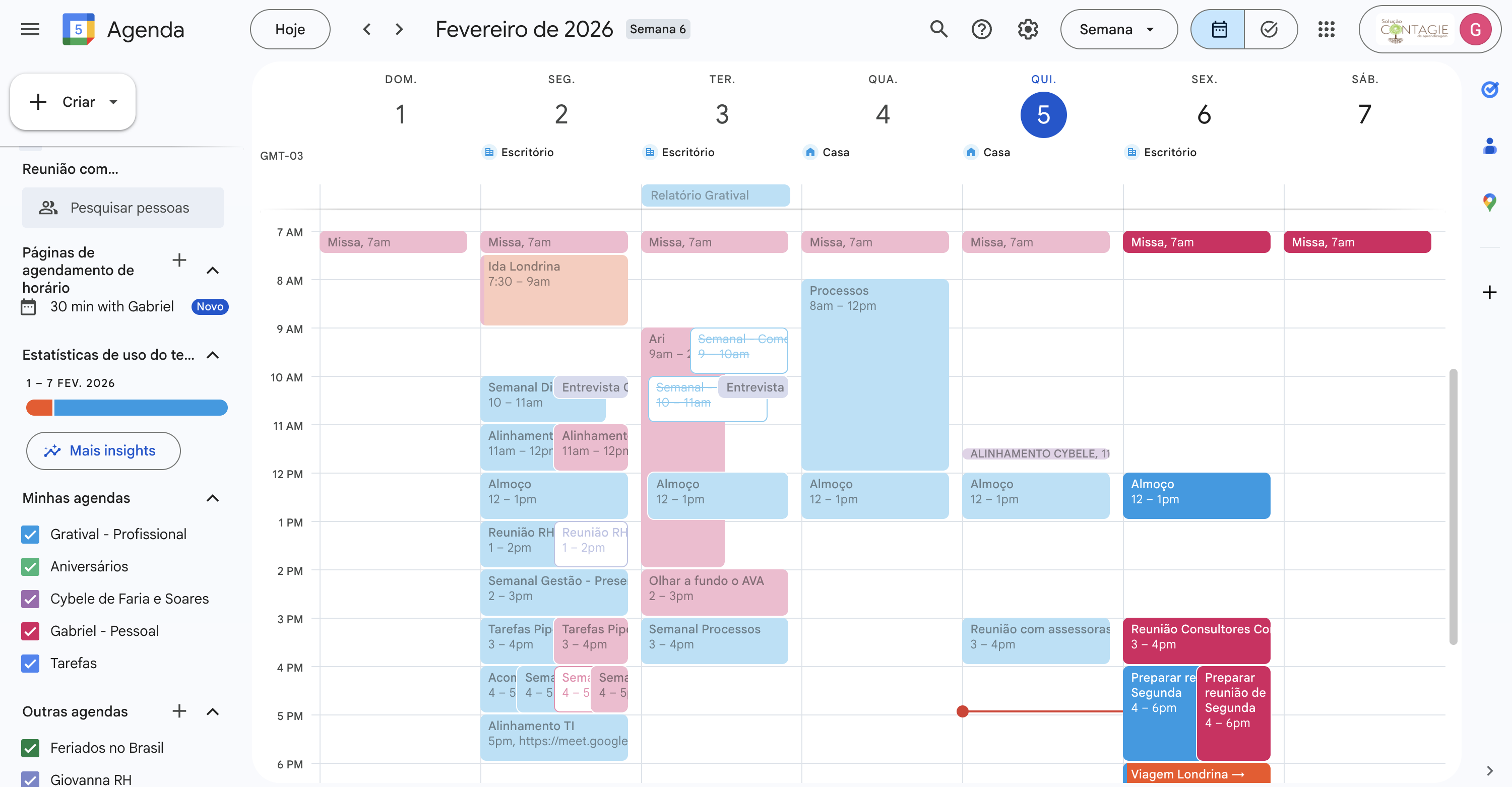 IMAGE: Tela inicial do Google Calendar --> IMAGE: Criação de novo evento no Google Calendar -->
***
## 1. Acessar o calendário correto
1. Abra o **Google Calendar** (versão web).
2. No menu lateral esquerdo, localize **Meus calendários**. 3. Selecione o calendário da \*\*assessora pedagógica correta para os compromissos ficarem visíveis \*\*(ex: `Assessora – Maria`).
IMAGE: Tela inicial do Google Calendar --> IMAGE: Criação de novo evento no Google Calendar -->
***
## 1. Acessar o calendário correto
1. Abra o **Google Calendar** (versão web).
2. No menu lateral esquerdo, localize **Meus calendários**. 3. Selecione o calendário da \*\*assessora pedagógica correta para os compromissos ficarem visíveis \*\*(ex: `Assessora – Maria`).
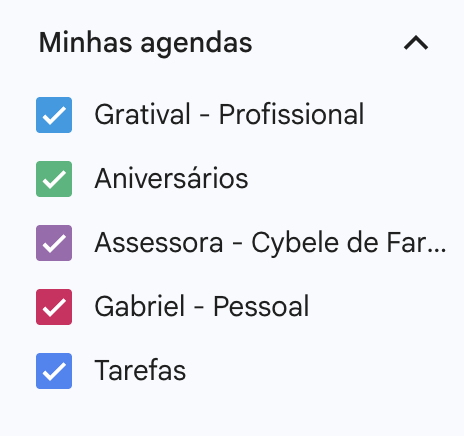 > ⚠️ Atenção: sempre confirme se o evento está sendo criado **no calendário da função**, não no calendário pessoal.
***
## 2. Criar um novo evento
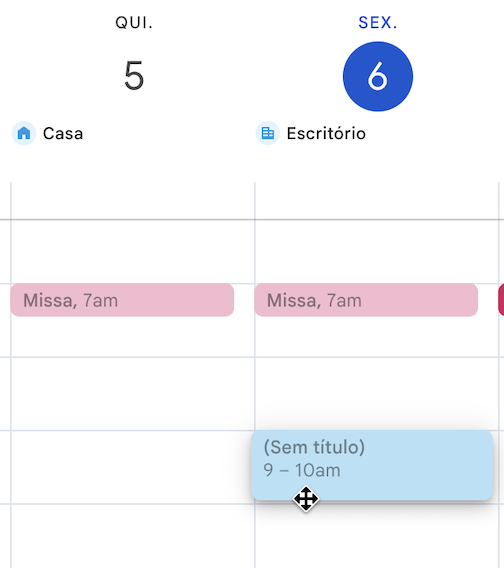
1. Clique e arraste pra baixo diretamente no **dia e horário** desejado
> ⚠️ Atenção: sempre confirme se o evento está sendo criado **no calendário da função**, não no calendário pessoal.
***
## 2. Criar um novo evento
1. Clique e arraste pra baixo diretamente no **dia e horário** desejado
 **OU**
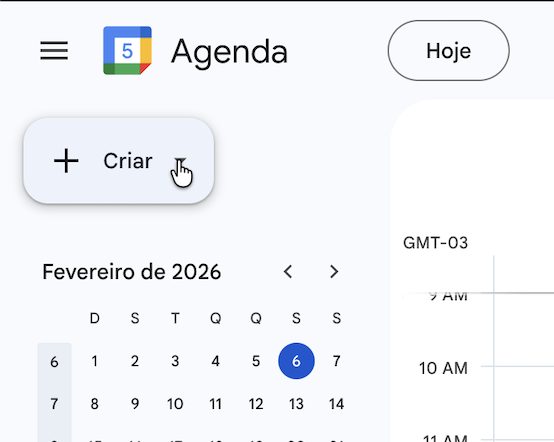
2. Clique no botão **“Criar” do lado esquerdo superior**.
**OU**
2. Clique no botão **“Criar” do lado esquerdo superior**.
 ***
## 3. Preencher as informações básicas do evento
### 3.1 Título do evento (padrão obrigatório)
```
[Visita/Formação] – [cidade] - [NOME DA ESCOLA]
```
**Exemplo:**
```
Visita – Sorocaba - Escola Municipal José de Alencar
```
***
## 3. Preencher as informações básicas do evento
### 3.1 Título do evento (padrão obrigatório)
```
[Visita/Formação] – [cidade] - [NOME DA ESCOLA]
```
**Exemplo:**
```
Visita – Sorocaba - Escola Municipal José de Alencar
```
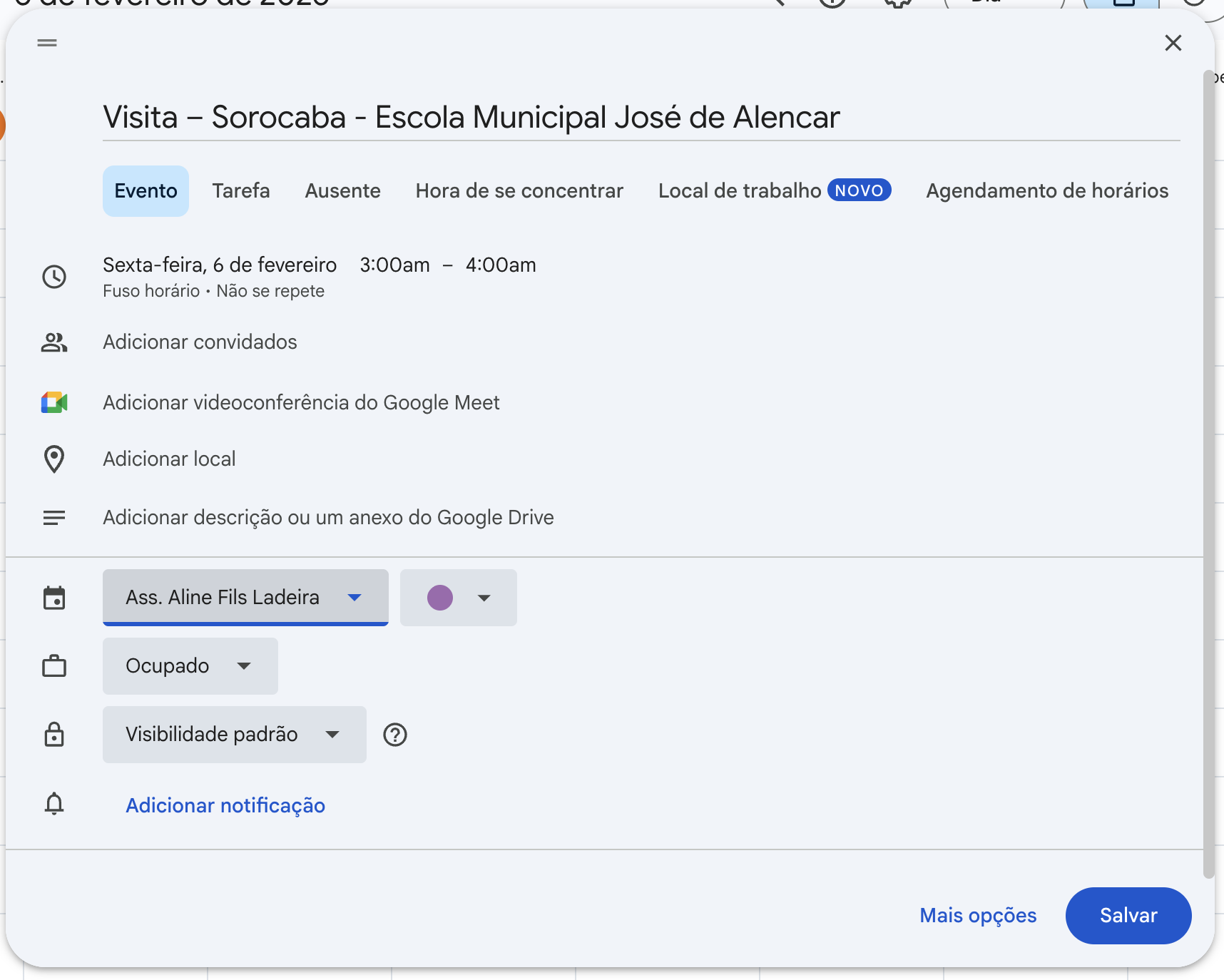 > ⚠️ Atenção: sempre confirme se o evento está sendo criado **no calendário da função**, não no calendário pessoal.
***
### 3.2 Data e horário
Para alterar o horário clique na sessão de horário do agendamento
> ⚠️ Atenção: sempre confirme se o evento está sendo criado **no calendário da função**, não no calendário pessoal.
***
### 3.2 Data e horário
Para alterar o horário clique na sessão de horário do agendamento
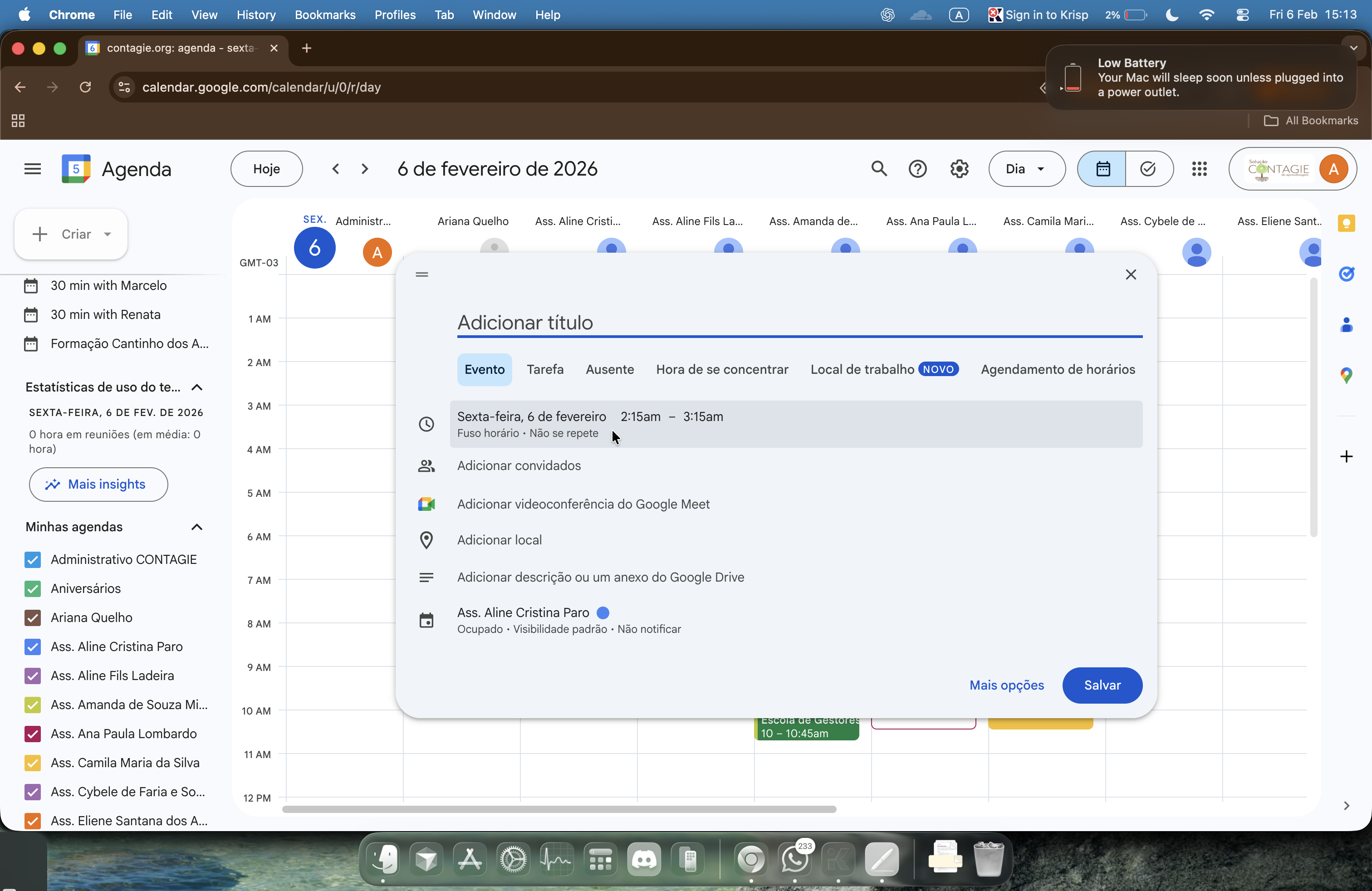 Os campos de dia e hora irão se abrir
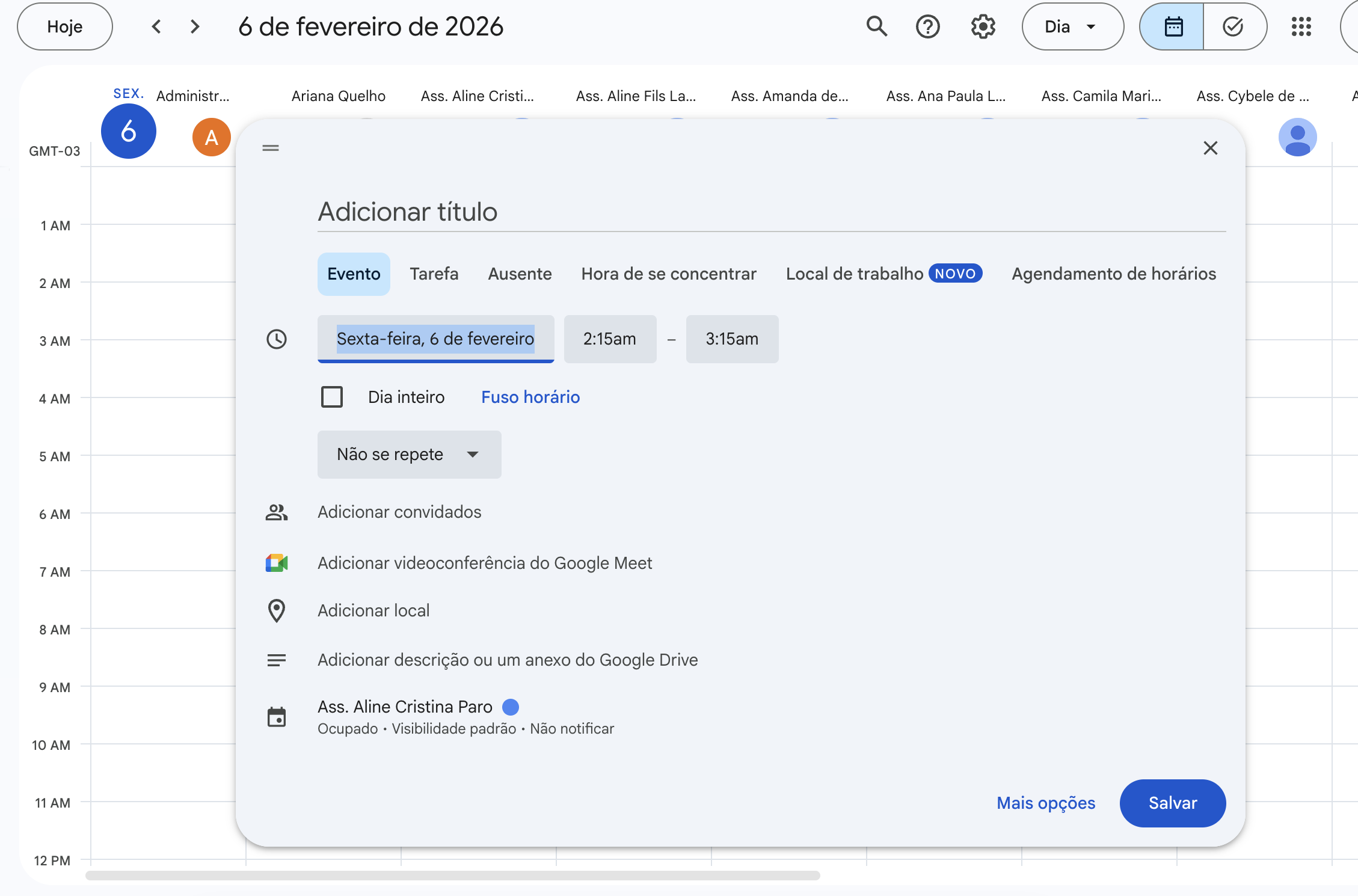 * Defina:
* Data inicial da visita
* Horário de início e término
* Utilize o horário já validado com base nas **restrições informadas pela escola**.
***
## 4. Configurar a recorrência quinzenal
1. Clique em **“Não se repete”** (logo abaixo da data).
* Defina:
* Data inicial da visita
* Horário de início e término
* Utilize o horário já validado com base nas **restrições informadas pela escola**.
***
## 4. Configurar a recorrência quinzenal
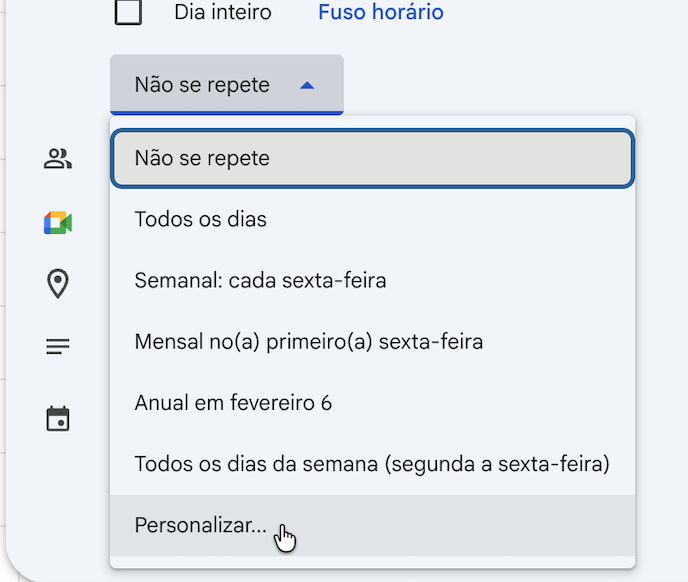
1. Clique em **“Não se repete”** (logo abaixo da data).
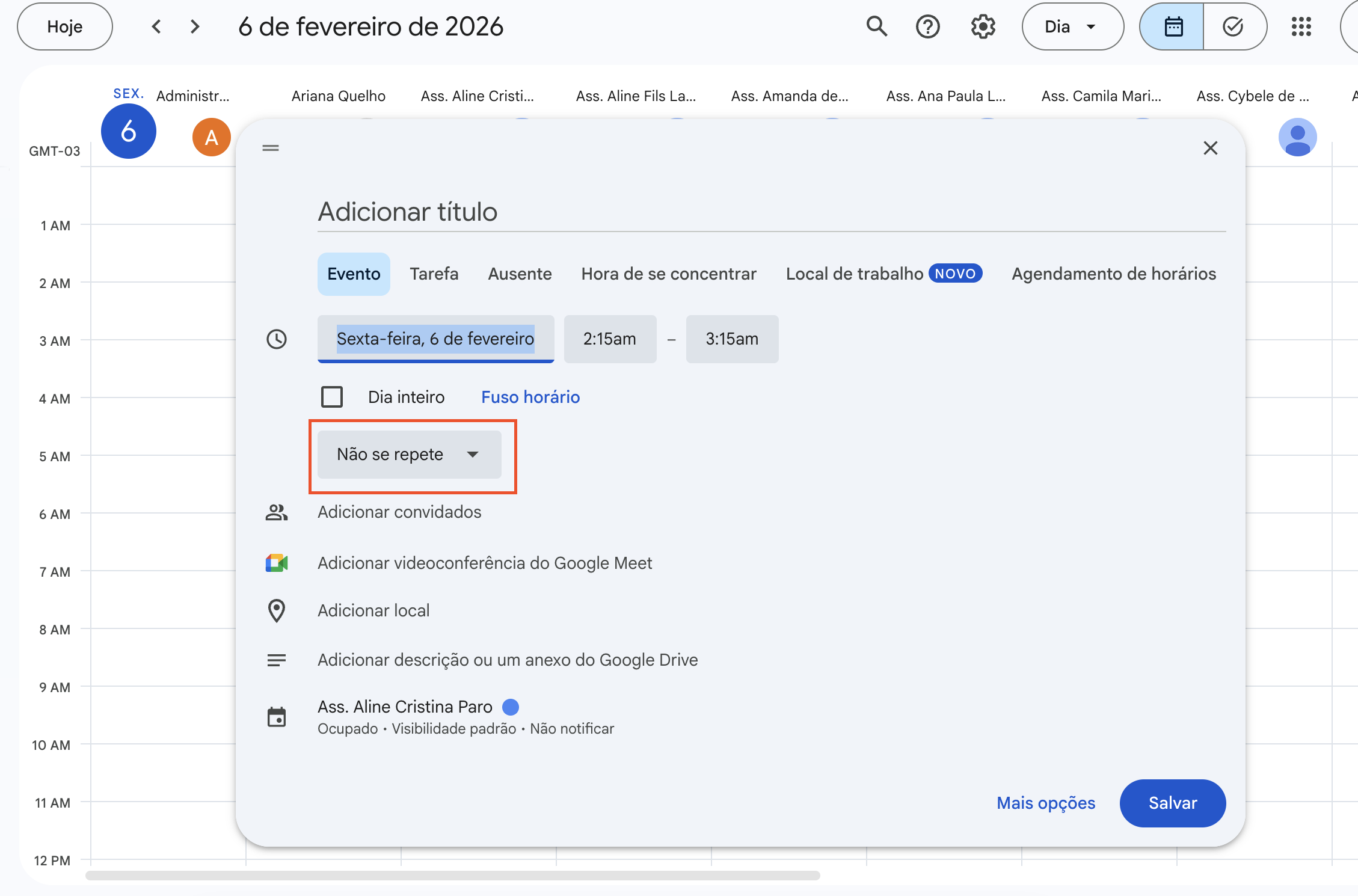 2. Selecione **“Personalizar”**.
 3. Configure:
* **Repetir a cada:** `2 semanas`
3. Configure:
* **Repetir a cada:** `2 semanas`
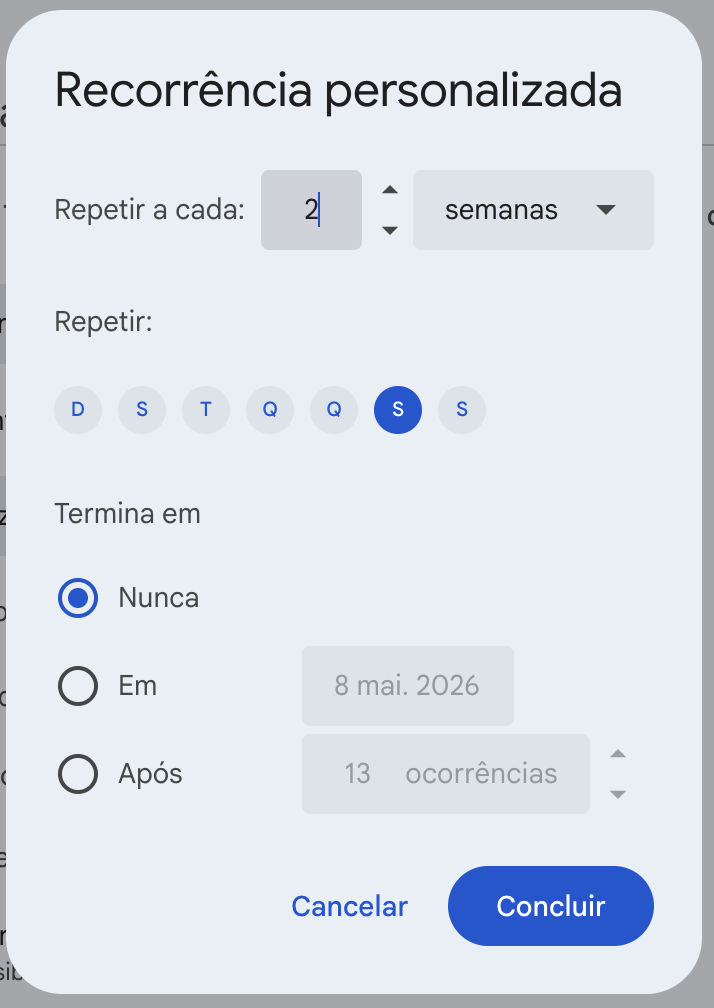 * **Dias da semana:** marque o dia correto
* **Terminar:**
* Preferencialmente **“Nunca”**
4. Clique em **“Concluir”**.
> ✅ Isso garante automaticamente a visita **a cada 15 dias**, sem necessidade de criar eventos manuais.
***
## 5. Preencher a descrição do evento (obrigatório)
No campo **Descrição**, inserir:
```
Escola: [NOME DA ESCOLA]
Rede: [Cidade]
Secretaria: [NOME]
Tipo de visita: Rotina quinzenal
Responsável: Assessoria Pedagógica CONTAGIE
```
***
## 6. Conferências antes de salvar
Antes de clicar em **Salvar**, valide:
* Evento criado no **calendário correto**
* Recorrência configurada para **2 semanas**
* Nome do evento segue o padrão
* Horário respeita as restrições da escola
* Descrição preenchida corretamente
***
## 7. Salvar o evento
1. Clique em **Salvar**.
2. Se o Google solicitar confirmação:
* Escolha **“Salvar todos os eventos”** ou equivalente.
***
## 8. Ajustes futuros (quando necessário)
### Alterar apenas uma visita específica
1. Clique no evento desejado.
2. Escolha **“Somente este evento”**.
### Alterar toda a sequência
1. Clique no evento.
2. Escolha **“Todos os eventos da série”**.
> ⚠️ Evite quebrar a recorrência sem criar imediatamente outra sequência quinzenal.
***
## 9. Erros comuns a evitar
* ❌ Criar eventos avulsos em vez de recorrentes
* ❌ Usar calendário pessoal
* ❌ Configurar recorrência semanal (1 semana)
* ❌ Não preencher a descrição do evento
* **Dias da semana:** marque o dia correto
* **Terminar:**
* Preferencialmente **“Nunca”**
4. Clique em **“Concluir”**.
> ✅ Isso garante automaticamente a visita **a cada 15 dias**, sem necessidade de criar eventos manuais.
***
## 5. Preencher a descrição do evento (obrigatório)
No campo **Descrição**, inserir:
```
Escola: [NOME DA ESCOLA]
Rede: [Cidade]
Secretaria: [NOME]
Tipo de visita: Rotina quinzenal
Responsável: Assessoria Pedagógica CONTAGIE
```
***
## 6. Conferências antes de salvar
Antes de clicar em **Salvar**, valide:
* Evento criado no **calendário correto**
* Recorrência configurada para **2 semanas**
* Nome do evento segue o padrão
* Horário respeita as restrições da escola
* Descrição preenchida corretamente
***
## 7. Salvar o evento
1. Clique em **Salvar**.
2. Se o Google solicitar confirmação:
* Escolha **“Salvar todos os eventos”** ou equivalente.
***
## 8. Ajustes futuros (quando necessário)
### Alterar apenas uma visita específica
1. Clique no evento desejado.
2. Escolha **“Somente este evento”**.
### Alterar toda a sequência
1. Clique no evento.
2. Escolha **“Todos os eventos da série”**.
> ⚠️ Evite quebrar a recorrência sem criar imediatamente outra sequência quinzenal.
***
## 9. Erros comuns a evitar
* ❌ Criar eventos avulsos em vez de recorrentes
* ❌ Usar calendário pessoal
* ❌ Configurar recorrência semanal (1 semana)
* ❌ Não preencher a descrição do evento